1. Installing the Plugin#
Due to requirements imposed by the QGIS plugin store, Polaris is no longer available through the standard QGIS plugin manager.
Note
Download the latest version of the plugin HERE.
This URL always points to the most recent release; previous builds are kept
alongside it as QPolaris-<version>.zip.
Installing the plugin is simply a matter of using the QGIS plugin manager to import the zip file downloaded above into the appropriate location on your system.
Once installed, the plugin will check for newer releases each time QGIS starts and notify you via the QGIS message bar when an update is available. If the check cannot reach the server it will display a brief non-blocking message and continue to load normally.
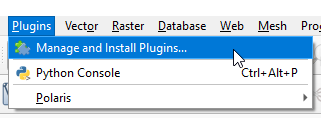
To access the plugin manager, go to the menu Plugins–>Manage and Install Plugins …
Once the plugin manager opens, select the tab Install from ZIP on the left-side from the GUI shown above and search for the zip file in your system.

Once again the installation process may take a long time to complete.
1.1. Activating and deactivating the plugin#
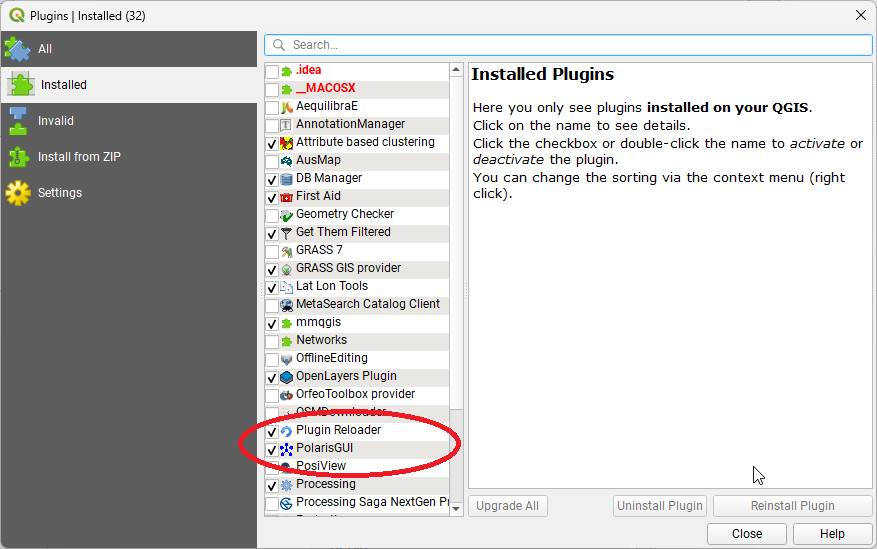
After installing the plugin, the last step is to activate it by accessing the installed tab on plugin manager again and making sure the PolarisGUI plugin is selected, as shown. You may have to de-activate it and activate it again.
1.2. Activating the processing provider#
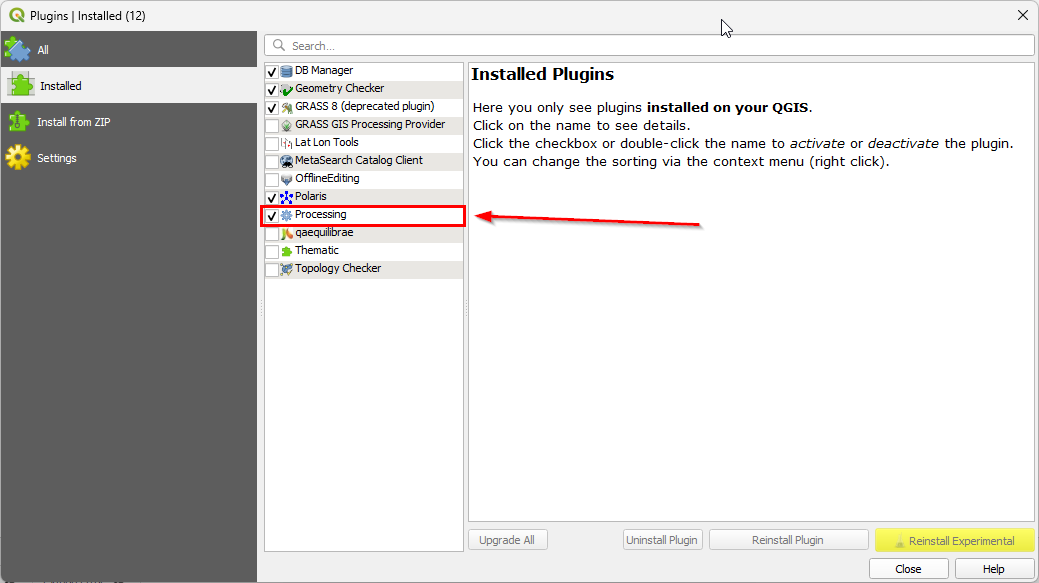
There is a remote chance that the processing provider is disabled altogether in your QGIS, in which case you need to navigate to the plugin menu, as described above. Once you navigate to the Installed plugins, you just need to make sure to check the box next to the Processing plugin, as shown below:
1.3. Plugin main components#

Once installed and activated, the user will be able to access its tools through a side panel.
Please note that the panel can be extended by dragging its top portion up after the windows expansion icon has appeared, as shown below.
The user also has access to a toolbar, which can be moved around like any other toolbar.

Both the toolbar and panel can be closed/hidden without deactivating the plugin.
1.4. Opening and closing tools#
Showing/Hiding the Polaris panel can be done in the View menu, as shown below:

Showing/Hiding the Polaris Toolbar can be done in the View menu, as shown below:
