3. Processing Provider#
One of the most powerful features of QGIS is its processing provider, which gives access to list to a wide range of tools covering pretty much every aspect of geoprocessing.
One of the great thing about the processing provider, however, is the way users can search and access tools. Different than the menu system, the processing provider allows users to search for tools by name, description of keyword, making it possible to list hundreds of tools without overwhelming the user with complicated menus.
With such a powerful search engine, we can host a whole lot of tools in the processing provider, and reserve the main panel menu for the most commonly used tools.
Note
Most tools from the main menu are also available in processing provider.
3.1. Opening the processing provider#
Note
If you can’t find the processing provider through the methods above, it might be disabled. Please check the instructions on Activating the processing provider
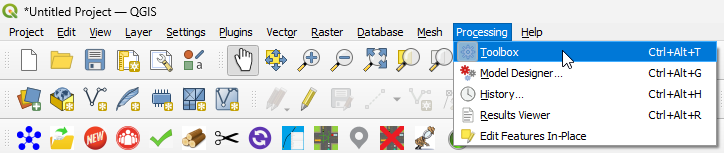
Two open the processing provider, the user can click on the processing provider icon  in the main
QGIS toolbar, select the Processing menu and then Toolbox, or press Ctrl+Alt+t.
in the main
QGIS toolbar, select the Processing menu and then Toolbox, or press Ctrl+Alt+t.
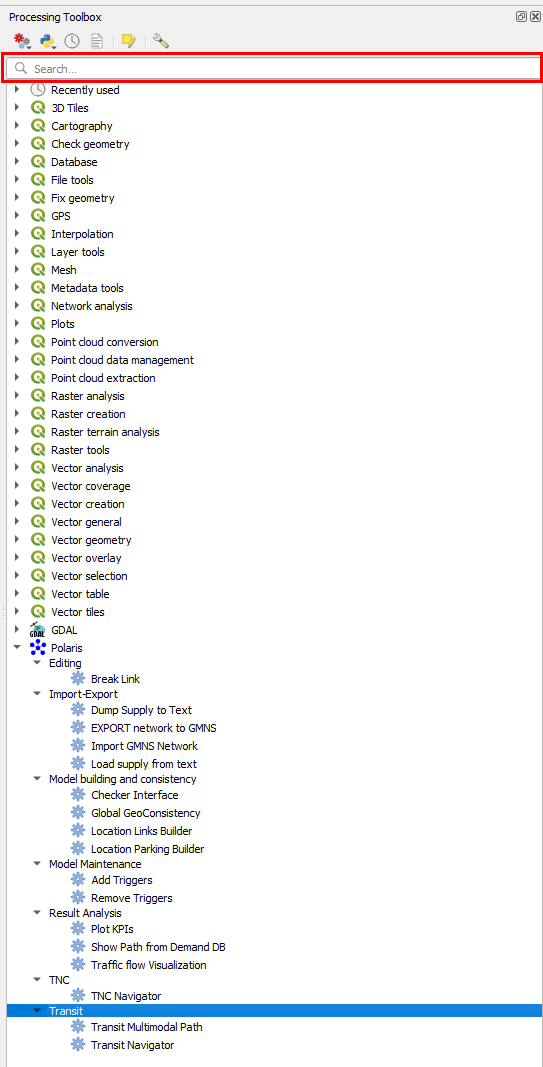
The processing provider, once opened, is a vertical menu as depicted below:
3.2. Editing#
The Breaking links activates the cutting mode, which allows the user to cut links in the network by clicking in the place where the cut should be made.
3.3. Import-Export#
Despite relying solely on data stored in open formats, we understand that there are more convenient formats for some specific workflows, so we make data import/export convenient for users.
3.3.1. Export matrices to OMX#
QPolaris allows you to export trip matrices for any period in the model for use in other transportation models, or even aggregated at county-level for incorporation in custom analytics pipelines.

For this export, all trips simulated in the selected iteration are grouped by mode and exported to an OMX file selected by the user.
Accessing this tool is done through the option Export Vehicle Matrices in the processing provider.
3.3.2. Import (load from text)#
It is best practice to version control Polaris supply models, and therefore there are built-in facilities to import and export supply files from/to text format.
Importing Supply files from text requires the user to choose the folder where the supply files are and that there are no file called polaris_network.sqlite in such folder, as that will be the name of the output file.
3.3.3. Import from GMNS#
Before importing networks from GMNS, the user must make sure that all GMNS files are unzipped inside a single folder and named accordingly to the GMNS standard.
After doing that, the user can access the GMNS importer GUI under the Import-Export menu, which will show the menu below.

Unless otherwise stated, the GMNS projection system will be 4326, while the target/project projection will have to be projected in meters. In doubt, the user can choose 3857 (Pseudo-Mercator), although that causes substantial distortions.
3.3.4. Export (Dump to text)#
Exporting a supply file requires only that the user chooses a folder to which export all text files to (there are two per table), and the user should be aware that any pre-existing files would be overwritten.
3.3.5. Export to GMNS#
When exporting networks to GMNS, the user must choose the desired projection for the output geographical information, and we recommend using 4326 (WGS84).
The user can access the GMNS exporter GUI under the Import-Export menu, which will show the menu below.

3.4. Model building and consistency#
The tools available in this section are also available in the main menu, and their full documentation can be found in:
3.5. Model maintenance#
Are you sure you want to do this? We would rather you did not.
3.5.1. Adding and removing triggers#
At times, the network triggers may impede more advanced edits to the database, so you can remove the triggers with a single command and, after manipulating your network, re-add those triggers.
Note
The process will fail if you delete tables or fields required by one or more triggers or if your version of the supply database is not the same shipped with the plugin. Upgrade your model before running this tool and always run the most up-to-date version of QPolaris.
Permanent changes to the database structure that require new/changed triggers must be incorporated in the Python library before being incorporated in the plugin.
3.6. Result Analysis#
The tools available in this section are documented in the main Analyzing results section. They are:
3.7. TNC#
All the TNC tools are documented in the TNCs
3.8. Transit#
All the Transit tools are documented in the Transit & Active